Sign in
Get back to your library, favorites, and plan on any device.
Updated June 4, 2026
Signing in brings back your library, favorites, notes, and subscription on whatever device you're using.
Step-by-step guide
- 01
Step 01 / 02
Sign in
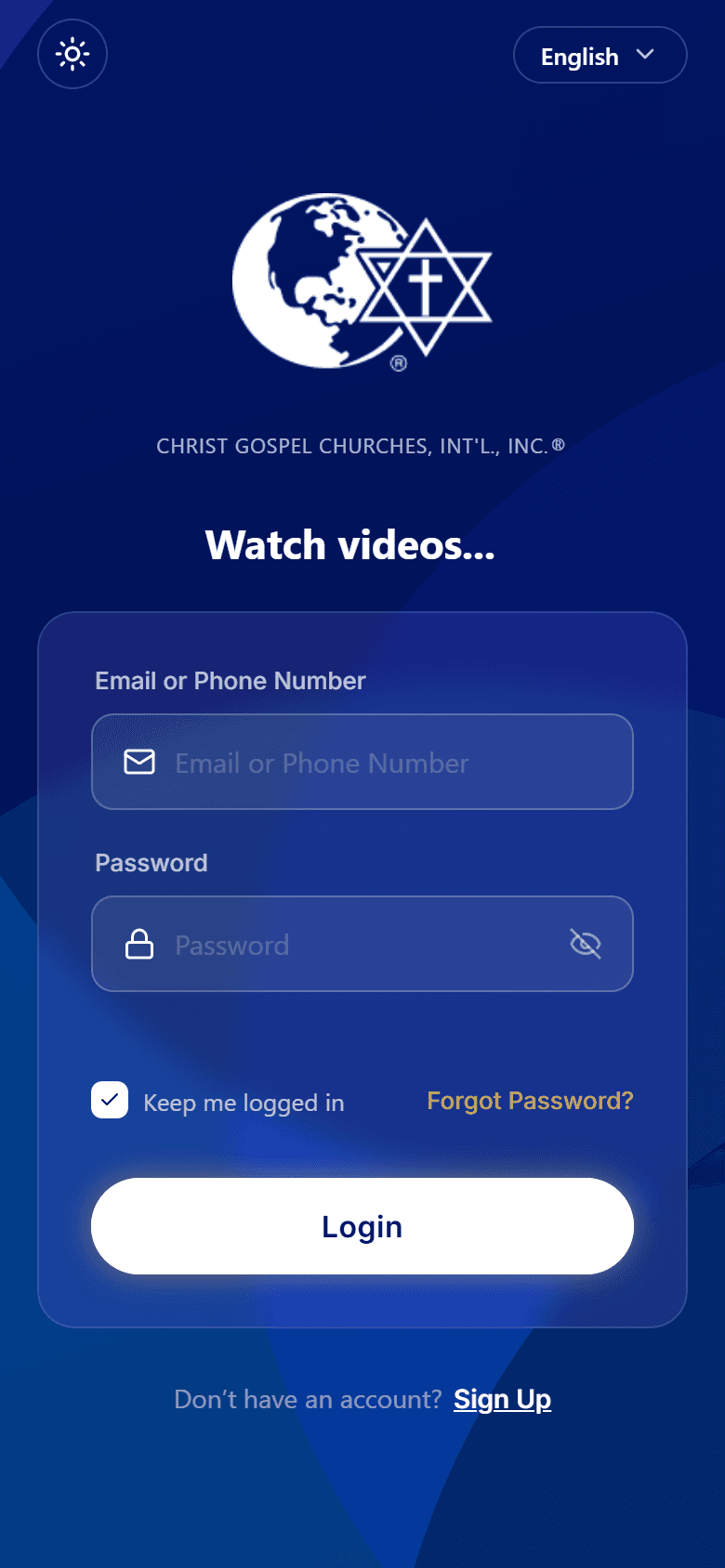
- On the welcome screen, tap Sign in.
- Enter the email or phone number on your account.
- Enter your password and tap Sign in.
For extra security, you may be asked for a 6-digit code that we text or email you — just type it in to continue. Turn on Remember me to stay signed in on your own device.
- 02
Step 02 / 02
Sign in with your face or fingerprint
Once you've signed in, you can turn on Face ID / Touch ID (or fingerprint unlock on Android) in the app's settings. After that, a glance or a touch gets you in — no password to type.
Forgot your password? Tap Forgot password on the sign-in screen and we'll help you set a new one. The full steps are in I can't sign in.
Coming from the old app? See Coming from the old app.
Walkthrough image coming soon