Coming from the old app
Bring your account over and finish setup in about a minute.
Updated September 9, 2026
Coming from the old CGC app? Your account comes with you — your library, favorites, notes, and plan are all waiting. You just confirm a few details and set a password. It takes about a minute, and there are three ways you might start.
Step-by-step guide
- 01
Step 01 / 04
You got an email from us
If you had a paid plan, we email you a link to finish setting up your new account.
- Open the email and tap the link to set up your account.
- On the page that opens, create your password and confirm your details.
- Save, and you're done — sign in anytime with your email and new password.
The link works once and expires after a while, so use the most recent email. The page opens on cgc.plus; older emails may send you to subscriptions.cgcset.app instead. Both are us.
Walkthrough image coming soon - 02
Step 02 / 04
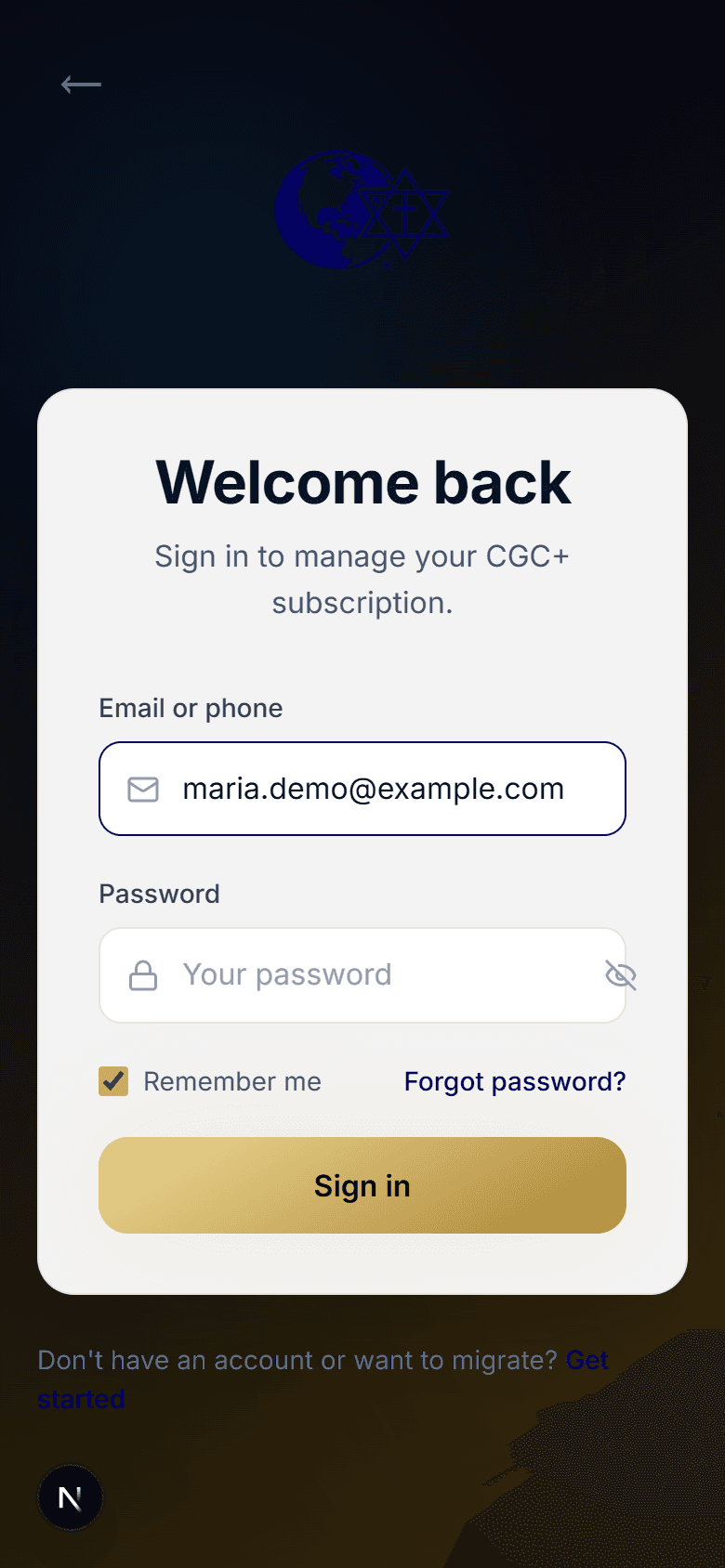
You tried to sign in
Signing in is the safety net if you missed the email.
- On the sign-in screen, enter your email first.
- If we detect an older (legacy) account, we email you a magic link — a one-time link that finishes your migration, so there's no password to remember yet.
- Open the email and tap the link. It opens the secure migration page on cgc.plus (older emails may show subscriptions.cgcset.app — both are us), where you confirm your email, phone number, and church, and set a password.
- Save, and you're migrated — sign in normally from then on.
- 03
Step 03 / 04
You're creating a new account
If you're on the sign-up screen but already had an account in the old app, you don't need to start over.
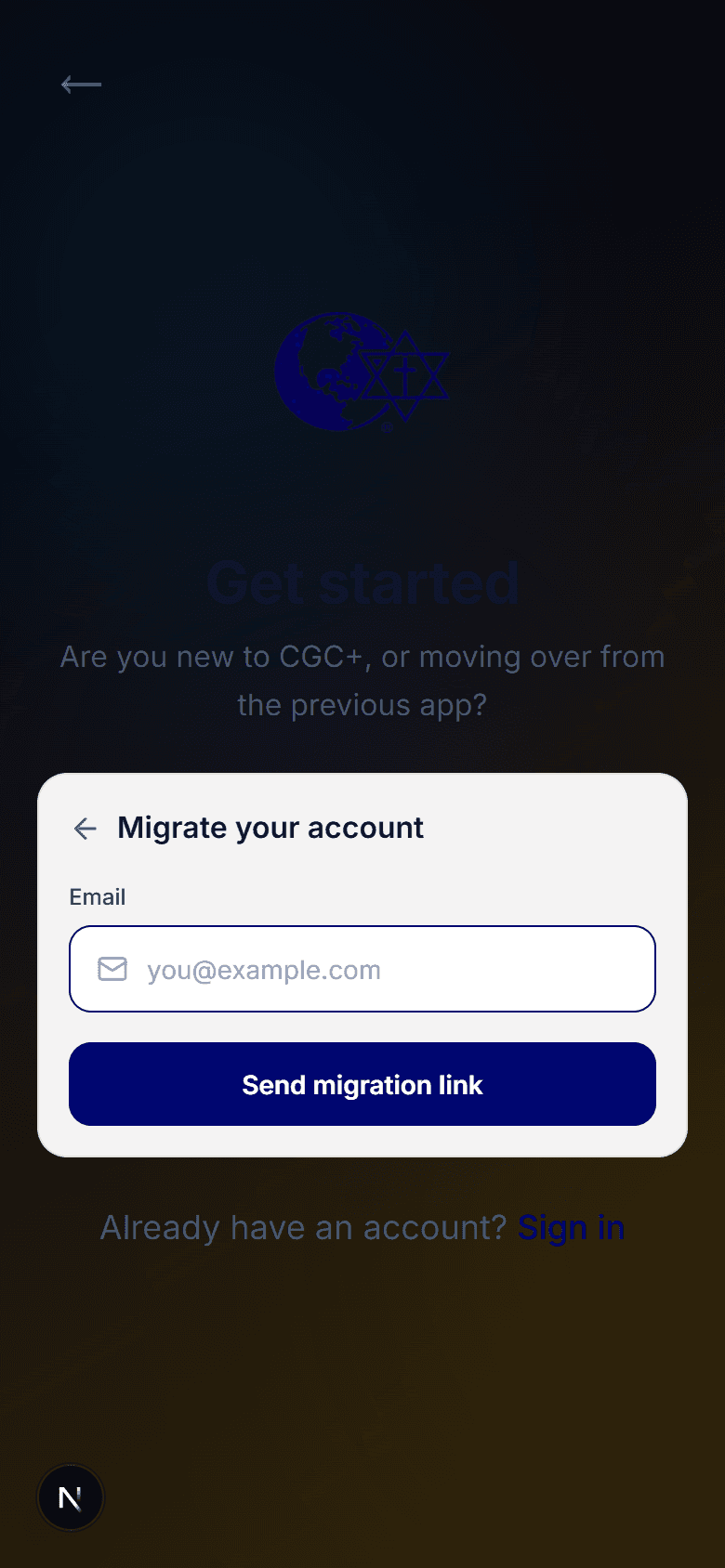
- On the sign-up screen, choose Migrate old account.
- Enter your migration code to link your old account.
- Your library and history come over to your new account.
Migrating brings your existing data with you. Creating a brand-new account instead starts you fresh — so if you had an old account, use one of the steps above.
- 04
Step 04 / 04
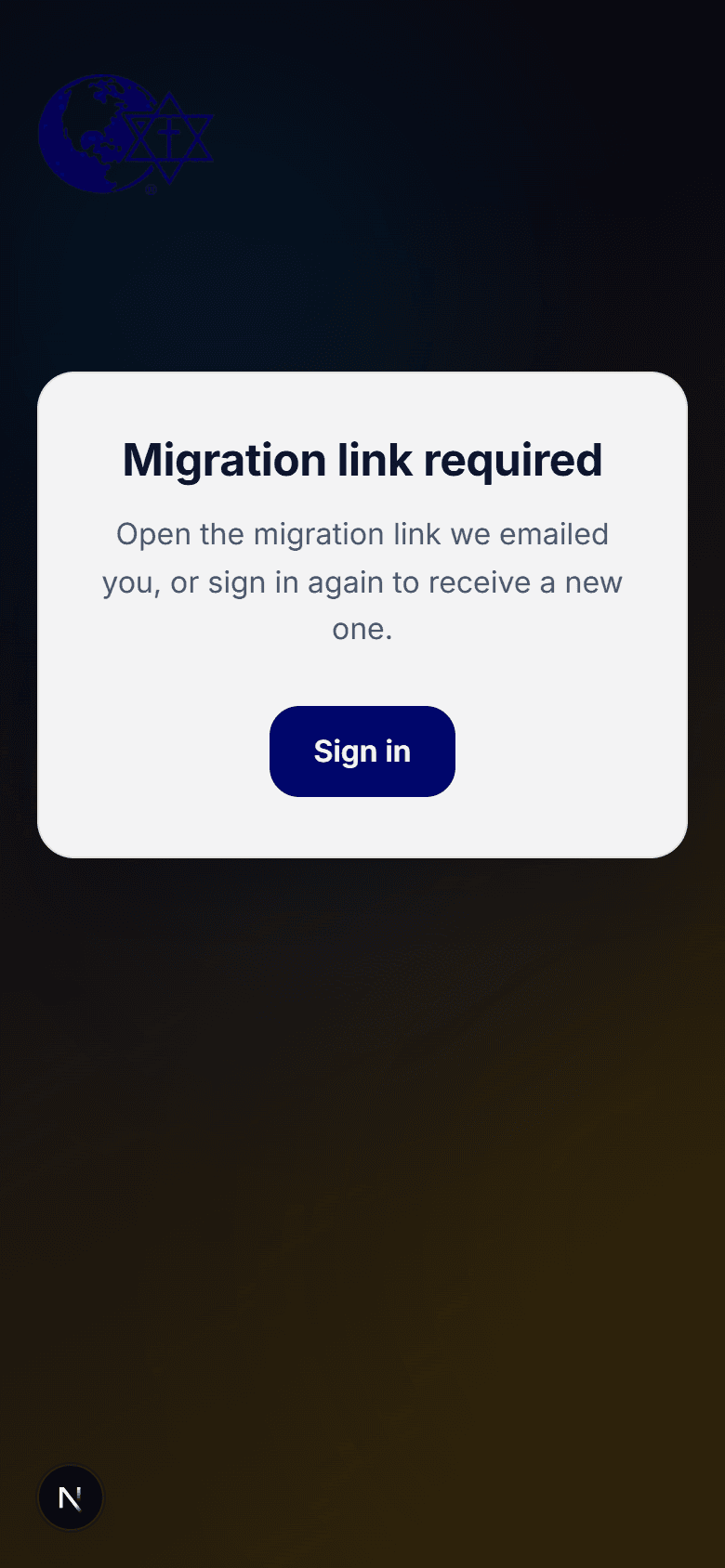
Didn't get the email, or the link expired?
- Check your spam folder and search for CGC.
- Migration links are single-use and time out. To get a fresh one, Sign in again with your email and we'll send a new link.
Already finished? Head to Sign in. New here after all? See Create your account. Trouble getting in? See I can't sign in.
Need a person? This help center covers guides and how-tos. For account help or to reach our team, open the CGC app and go to Help & Support → Contact Support. You can follow up anytime under My Tickets. You can also email appdev@christgospel.org.