Advanced search settings
Fine-tune ranking, matching, and which results you see.
Updated October 1, 2026
The Advanced tab in Search filters gives you precise control over how search works. You never need it for everyday searching, but it helps when you're studying a topic in depth. Tap Reset at any time to go back to the defaults.
Step-by-step guide
- 01
Step 01 / 03
Ranking and fields
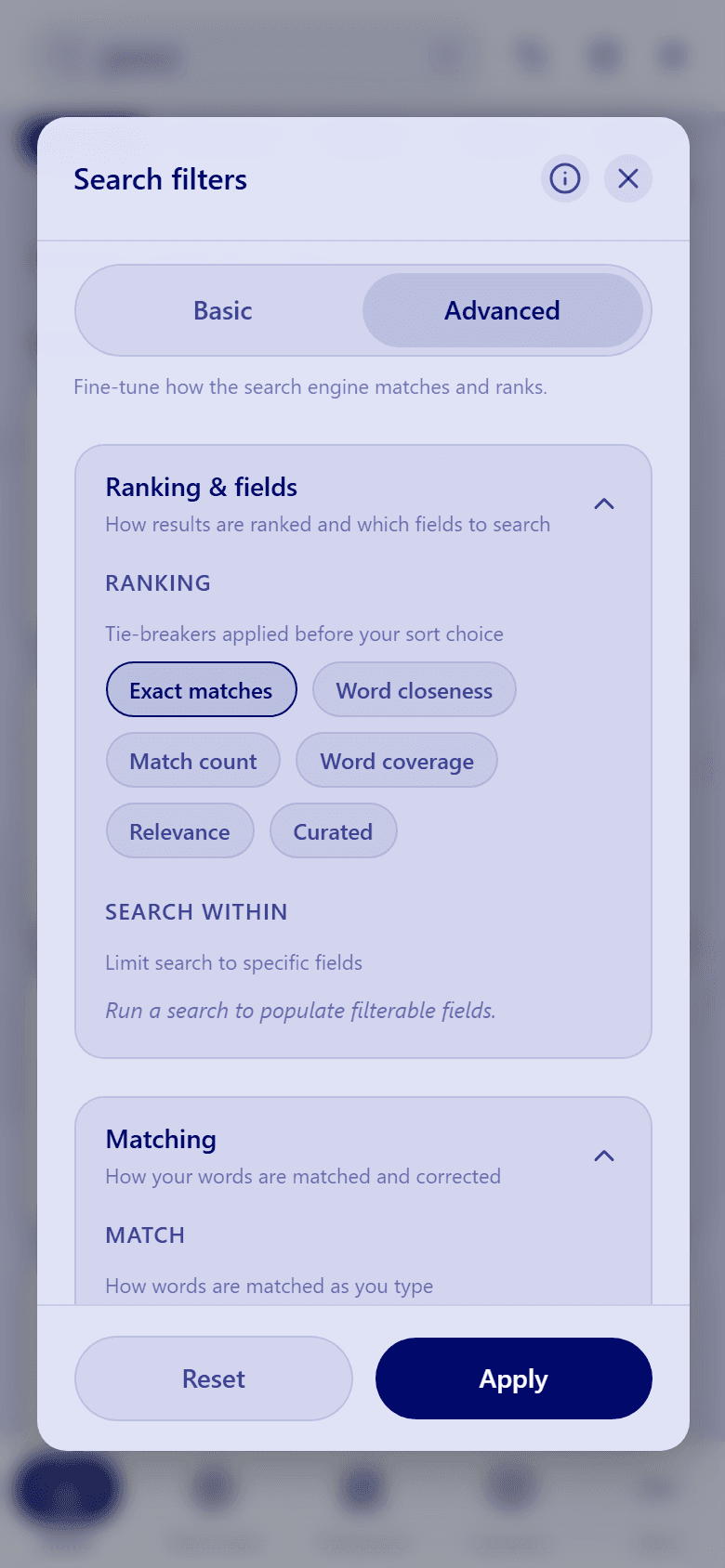
- Ranking chooses what decides a tie between results, before your sort order is applied: Exact matches, Word closeness, Match count, Word coverage, Relevance, and Curated.
- Search within limits your search to certain parts of each result, such as the title. These choices appear after you've run a search.
- 02
Step 02 / 03
Matching
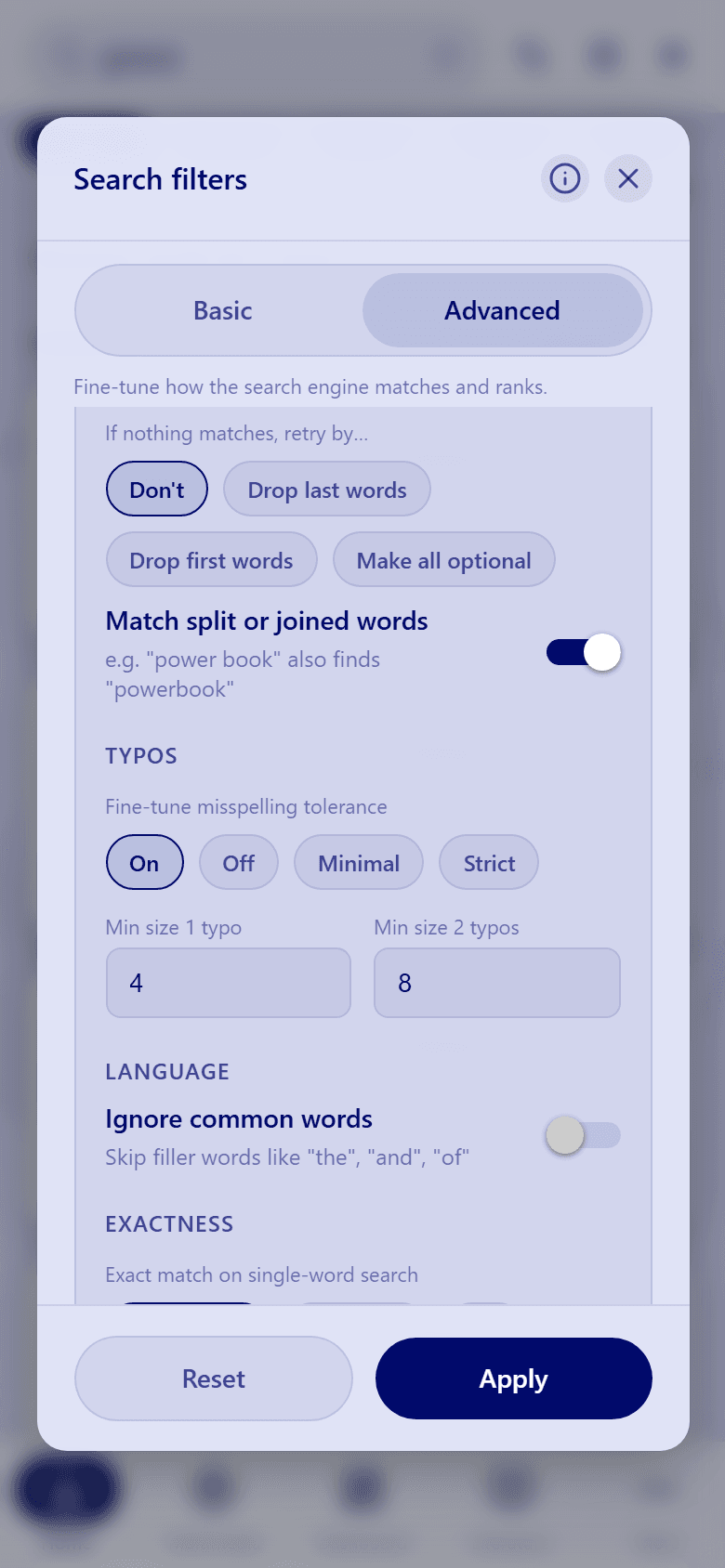
- Match decides how your last word is treated while you type: Type-ahead (last word), Type-ahead (all words), or Whole words only.
- If nothing matches, retry by… lets search drop some of your words when nothing is found: from the end, from the start, or by making every word optional.
- Match split or joined words finds "mountaintop" when you type "mountain top", and the other way around.
- Typos sets how forgiving search is with spelling, and how long a word must be before a mistake is allowed.
- Ignore common words leaves out small words like "the" and "of".
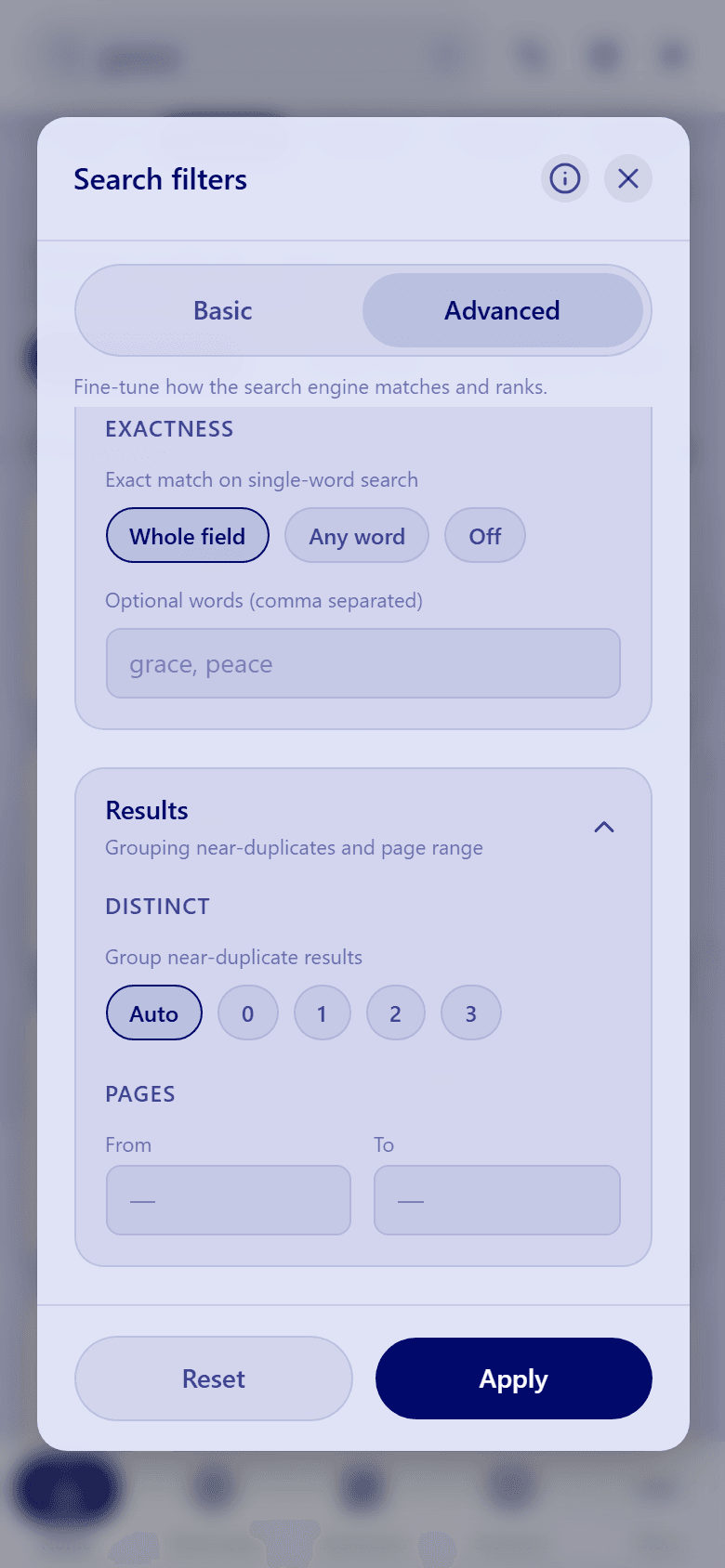
- Exactness chooses how strongly exact matches are favored. You can also list optional words that don't have to appear.
- 03
Step 03 / 03
Results
- Distinct groups near-duplicate results so the same item doesn't fill the list.
- Pages (on the Sermons and Books tabs) limits results to a range of pages, for example pages 1 to 10.
These settings are in English in the app for now.