Understand your search results
See where your words appear and jump straight to that page or moment.
Updated October 1, 2026
Every result tells you where your words were found, so you can go straight to the right page or the right moment in a recording.
Step-by-step guide
- 01
Step 01 / 03
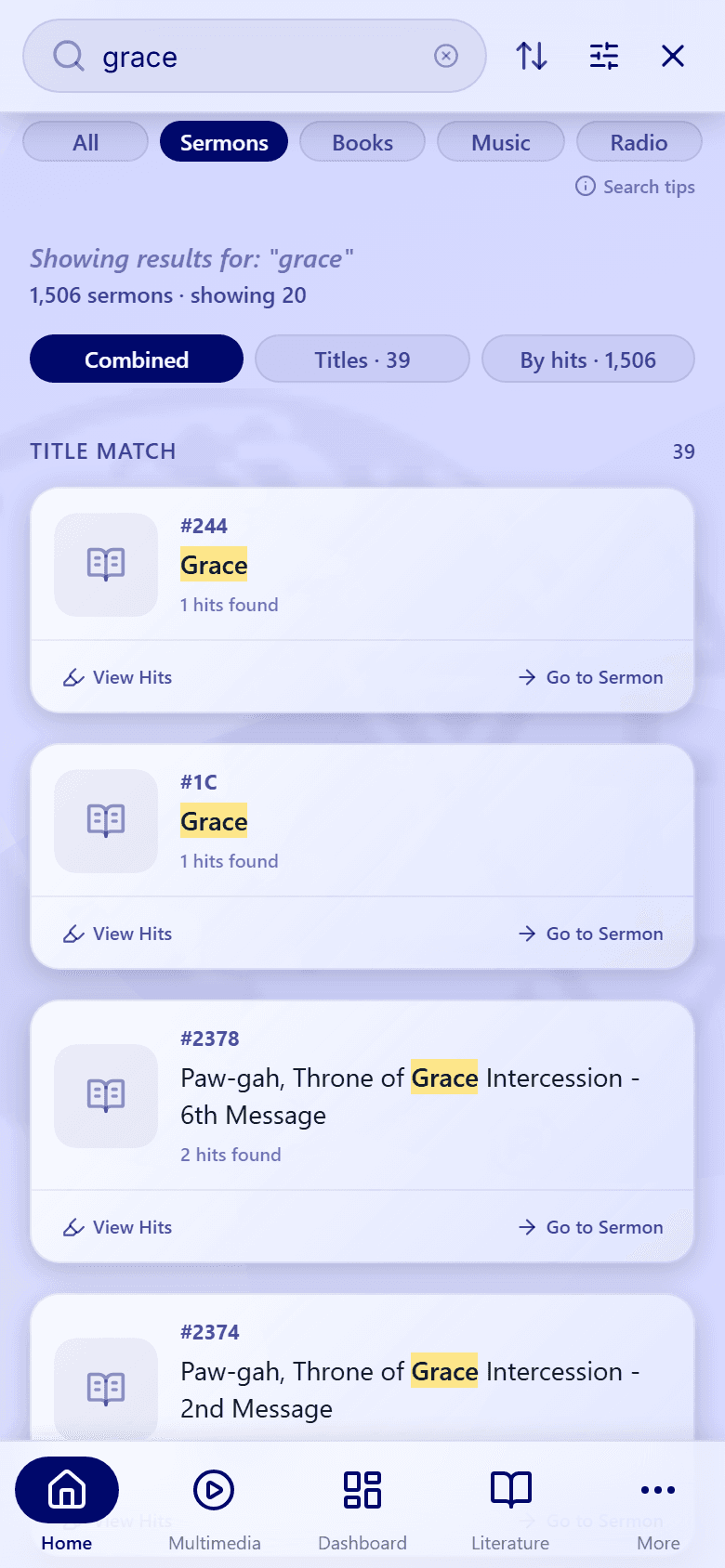
What each result shows
- Sermons show the sermon number, the title, and how many matches were found ("8 hits found"). Tap Go to Sermon to open it.
- Books show the page where the best match is. Tap Go to Book to open it.
- Music shows the style (Hymns, Worship, or Contemporary), the length, and the artist. Tap a song to play it.
- Radio shows a line from the program and the moment it's said ("Starts at 600.4s"). Tap it to listen from there.
Your search words are highlighted in every title and snippet.
- 02
Step 02 / 03
See every match with View Hits
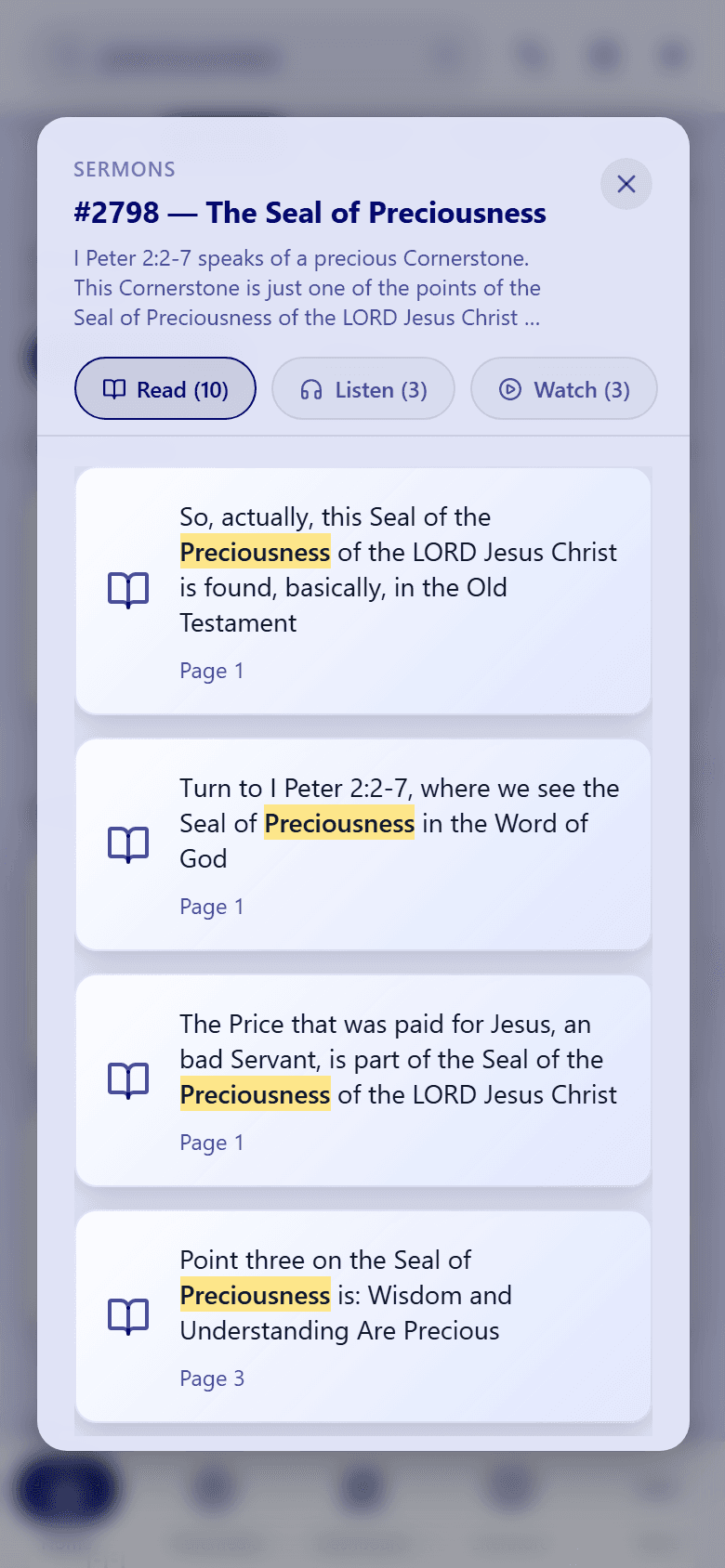
On a sermon or book, tap View Hits to see every place your words appear. The panel splits them by where they were found:
- Read: matches in the written text, with the page number.
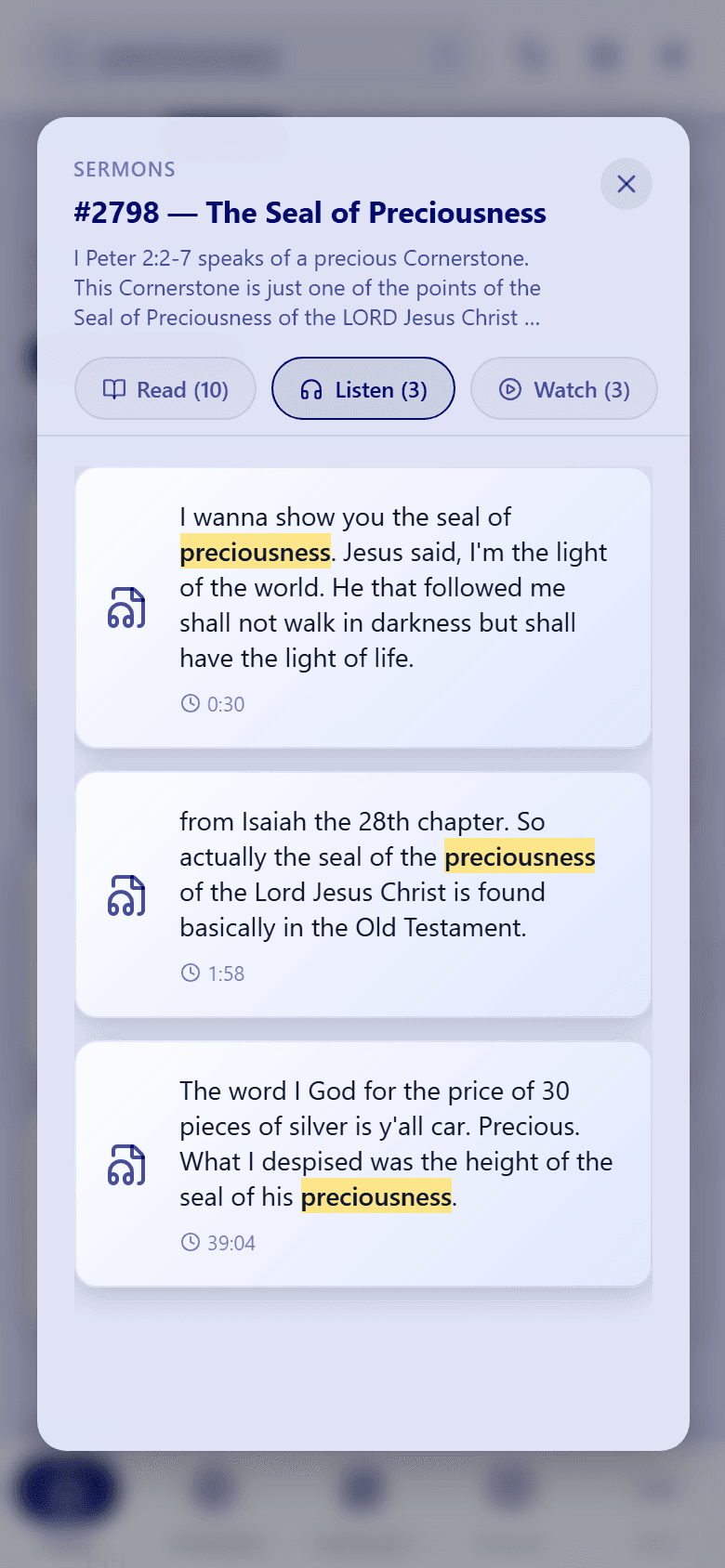
- Listen: matches in the audio, with the time they're said.
- Watch: matches in the video, with the time they're said.
Each tab shows how many matches it has, for example Read (10).
- 03
Step 03 / 03
Jump to the exact moment
Tap any match in View Hits to go straight there: a Read match opens the text at that page, a Listen match starts the audio right where the words are said, and a Watch match opens the video at that moment.
When you're done, tap the back button to return to your search results.
Some sermons are only available in some formats, so a tab can show (0). That just means that format has no matches.
Want different results? See Sort and filter results.