Sort and filter results
Change the order, choose title or text matches, and set your filters.
Updated October 1, 2026
Use the buttons next to the search bar to put the best results at the top.
Step-by-step guide
- 01
Step 01 / 03
Change the order
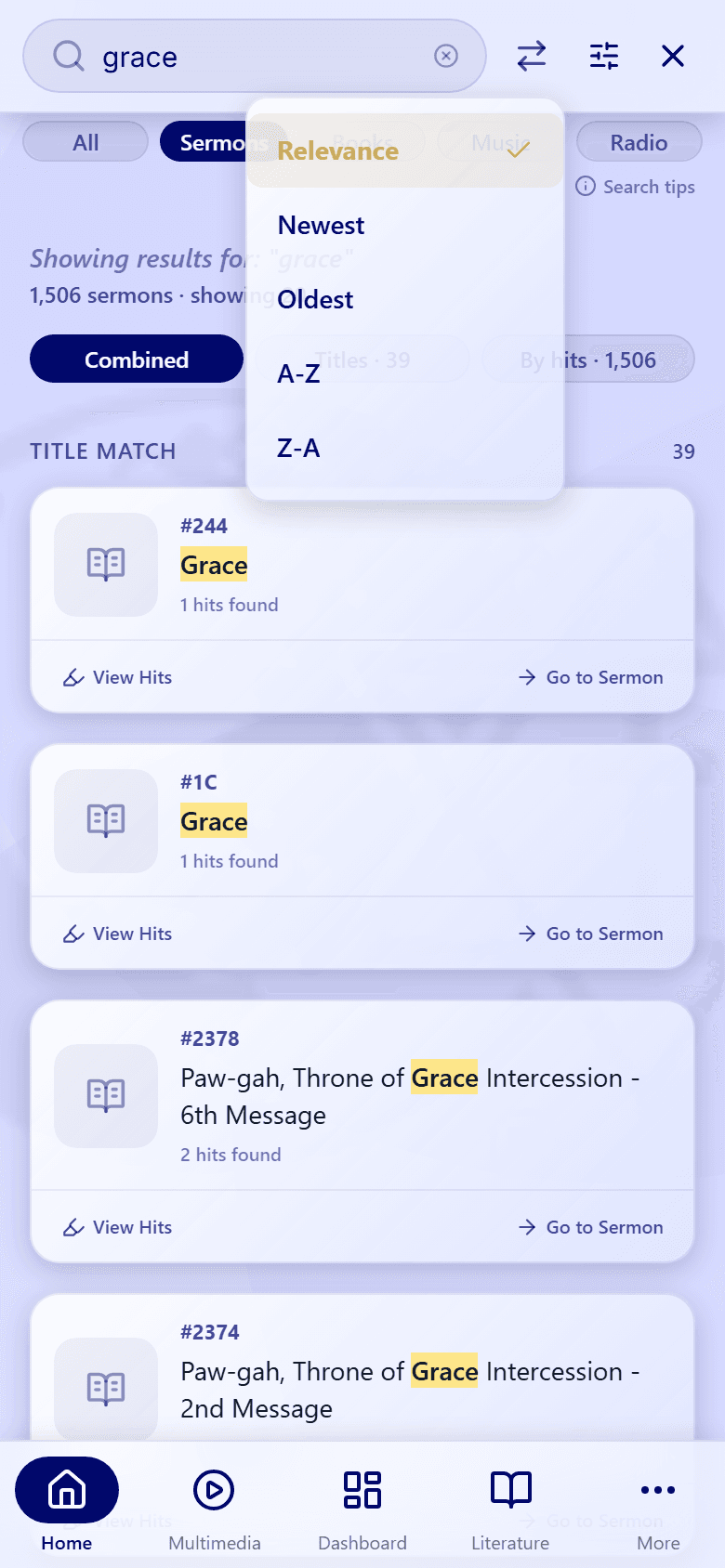
Tap the sort button (the up-and-down arrows) and choose:
- Relevance: the closest matches first. This is the default.
- Newest or Oldest: by year. Songs have no year, so on the Music tab these keep the Relevance order.
- A-Z or Z-A: by title.
On the Sermons and Books tabs, results that contain your exact phrase stay at the top, sorted among themselves.
- 02
Step 02 / 03
Titles or the words inside
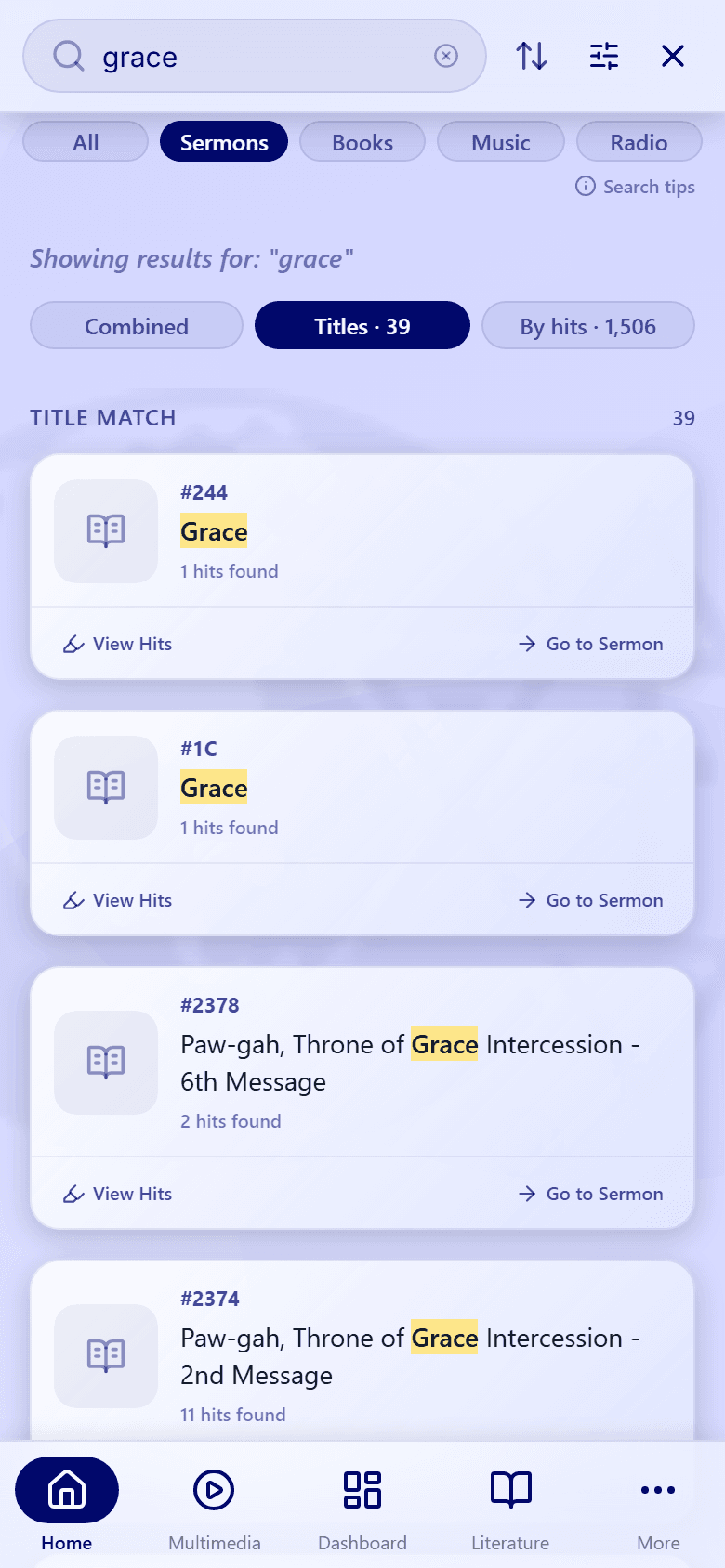
On the Sermons and Books tabs, choose what kind of match you want to see:
- Combined: everything. Title matches are listed first, under Title match.
- Titles: only results with your words in the title.
- By hits: only results with your words inside the text or recording.
Each button shows how many results it has, for example Titles · 39.
- 03
Step 03 / 03
Search filters
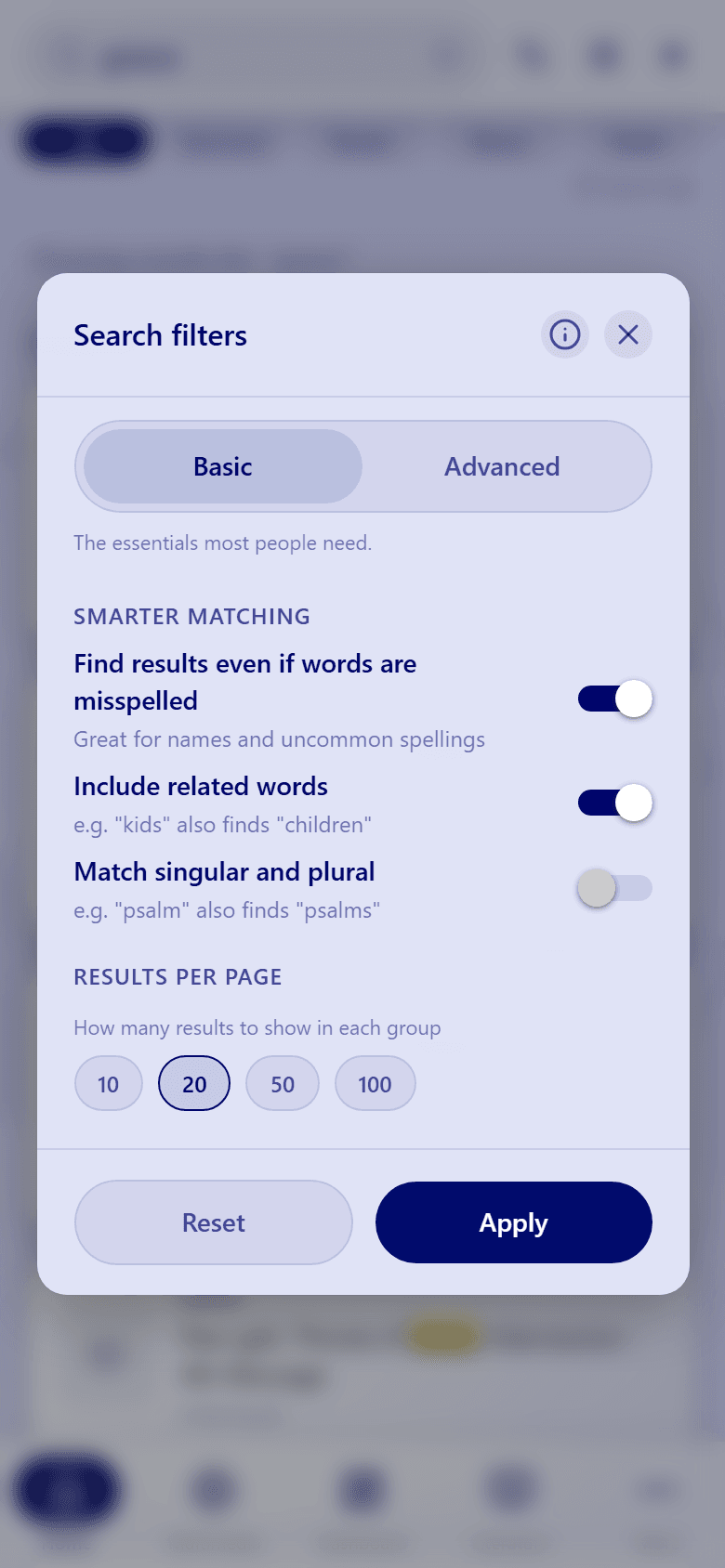
Tap the filters button (the sliders) to open Search filters. The Basic tab has the settings most people need:
- Find results even if words are misspelled.
- Include related words: "kids" also finds "children".
- Match singular and plural: "psalm" also finds "psalms".
- Results per page: 10, 20, 50, or 100.
Tap Apply to use your changes, or Reset to go back to the defaults.
Want even more control? See Advanced search settings.