Your dashboard
Your notifications, notebooks, favorites, and playlists in one place.
Updated October 1, 2026
The Dashboard tab gathers everything that's yours in the app. Tap Dashboard in the bar at the bottom of the screen to open My Dashboard.
Step-by-step guide
- 01
Step 01 / 03
Notifications and notebooks
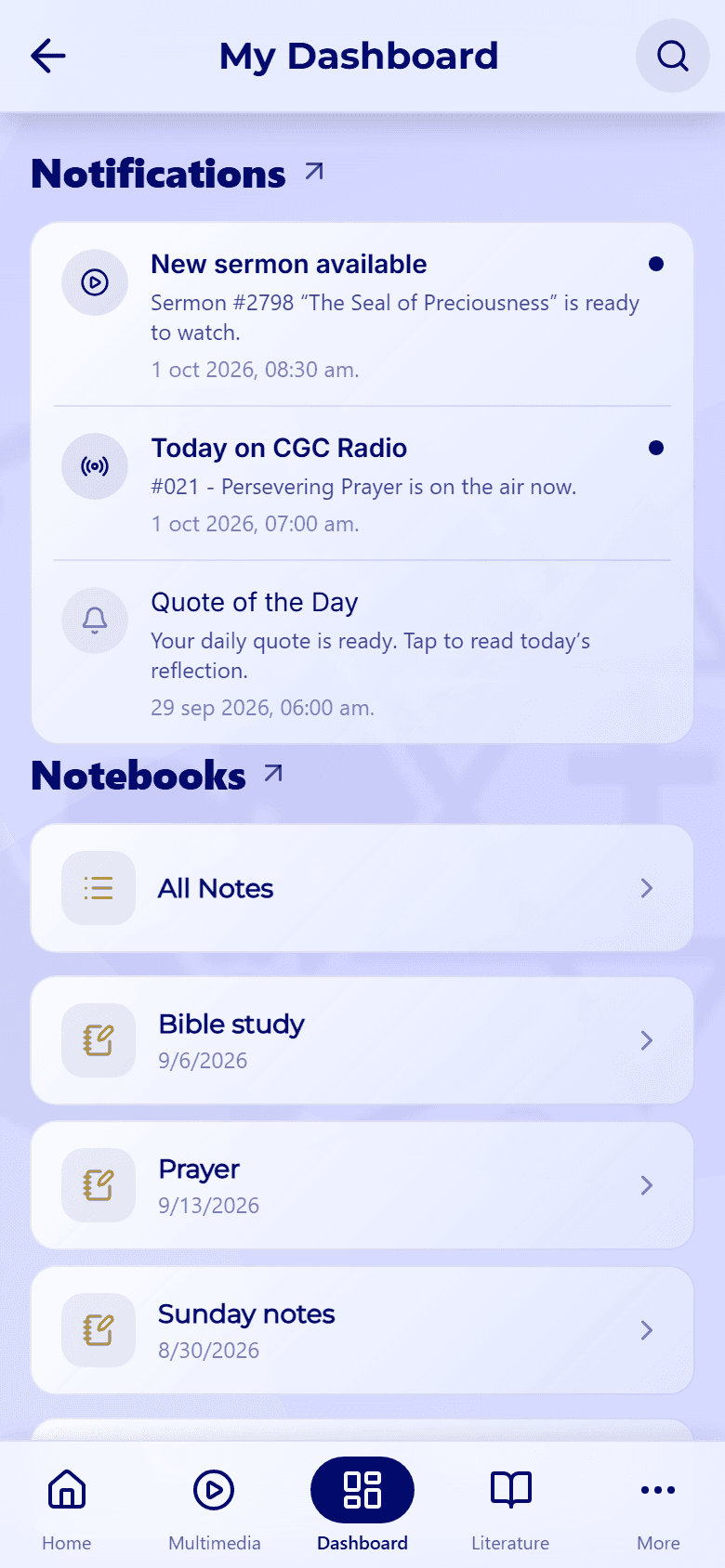
At the top, Notifications shows your latest alerts, such as a new sermon, what's on CGC Radio, or your Quote of the Day. A dot marks the ones you haven't read yet. Below it, Notebooks lists the notebooks that hold your notes.
Tap the arrow next to any section title to open its full screen. The search icon at the top right opens search.
- 02
Step 02 / 03
Favorites and playlists
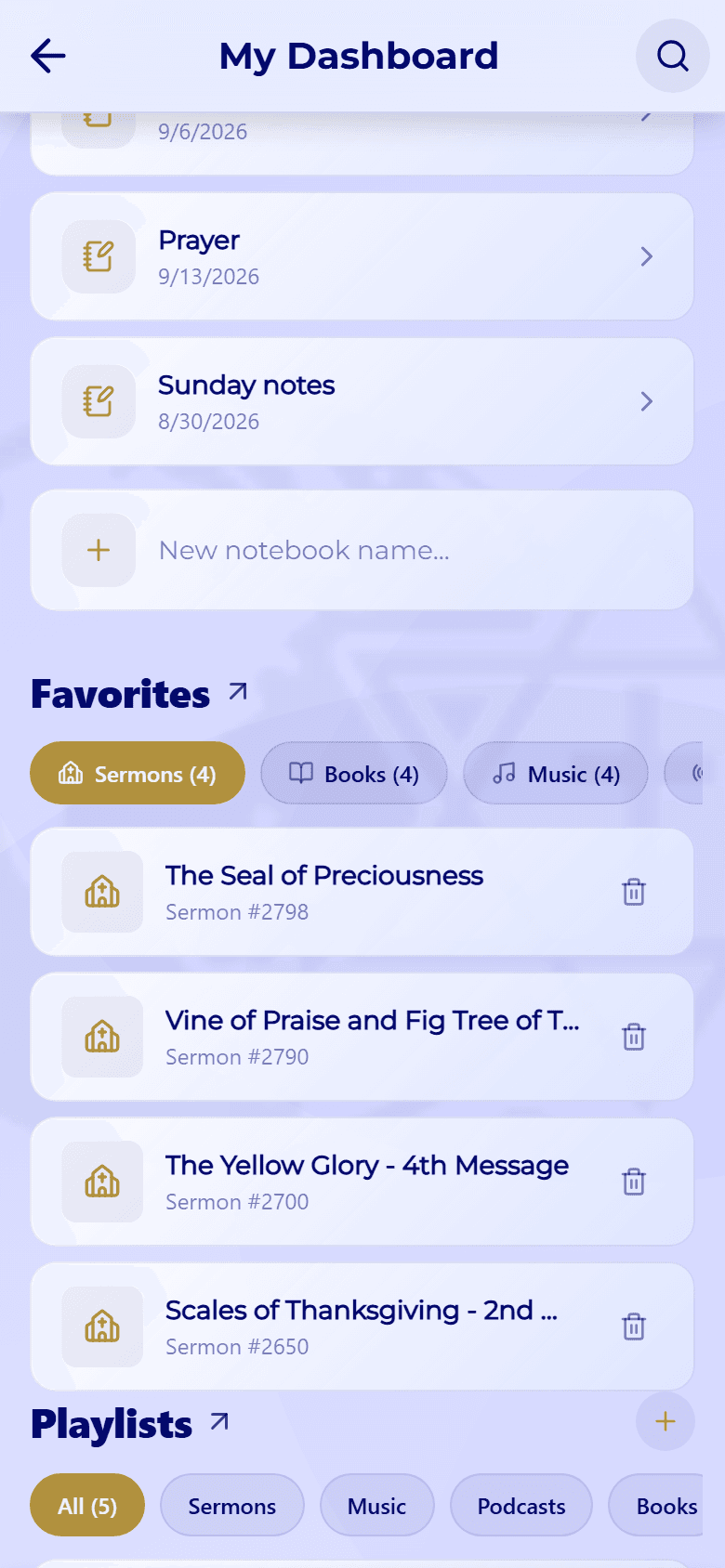
Scroll down for Favorites and Playlists. The chips under each title filter the list by type, and the + next to Playlists creates a new playlist. In the phone app, your Downloads appear at the bottom as well.
- 03
Step 03 / 03
All your notifications
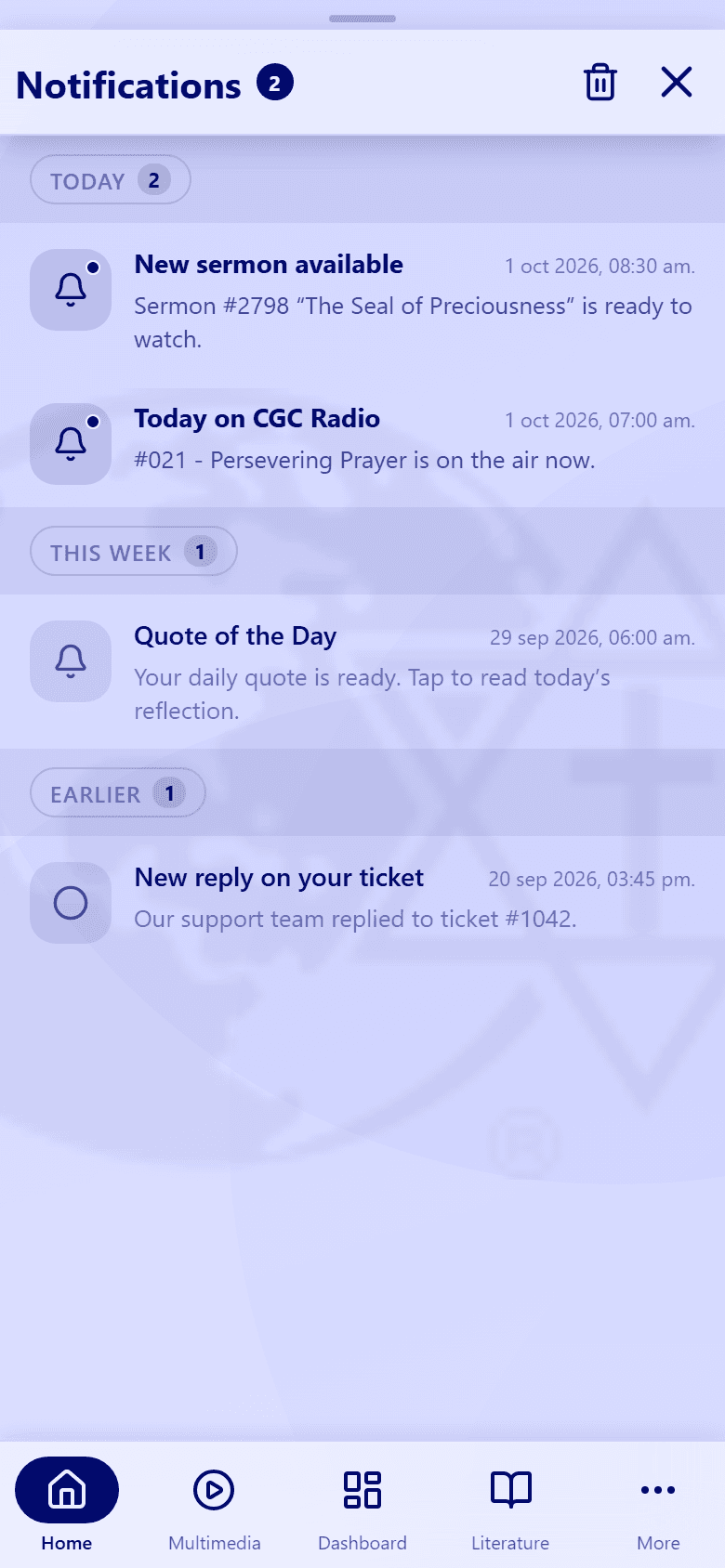
Tap the arrow next to Notifications, or the bell on the Home screen, to see every notification, grouped into Today, This week, and Earlier.
- Open one: tap it. That also marks it as read.
- Mark it read or unread, or delete it: swipe it sideways.
- Handle several at once: press and hold one to start selecting, then mark the selected ones read or unread, or delete them.
- Clear the list: tap the trash icon at the top and confirm.
Each section has its own guide: Notebooks and notes, Favorites, Playlists, and Downloads & offline.