Downloads & offline
Save sermons, books, and music for offline use.
Updated October 1, 2026
Download sermons, books, music, and programs to your device so you can enjoy them without a connection — handy for flights, commutes, or saving data. Downloads live in the app (you won't see a download button on the website).
Step-by-step guide
- 01
Step 01 / 02
Download something
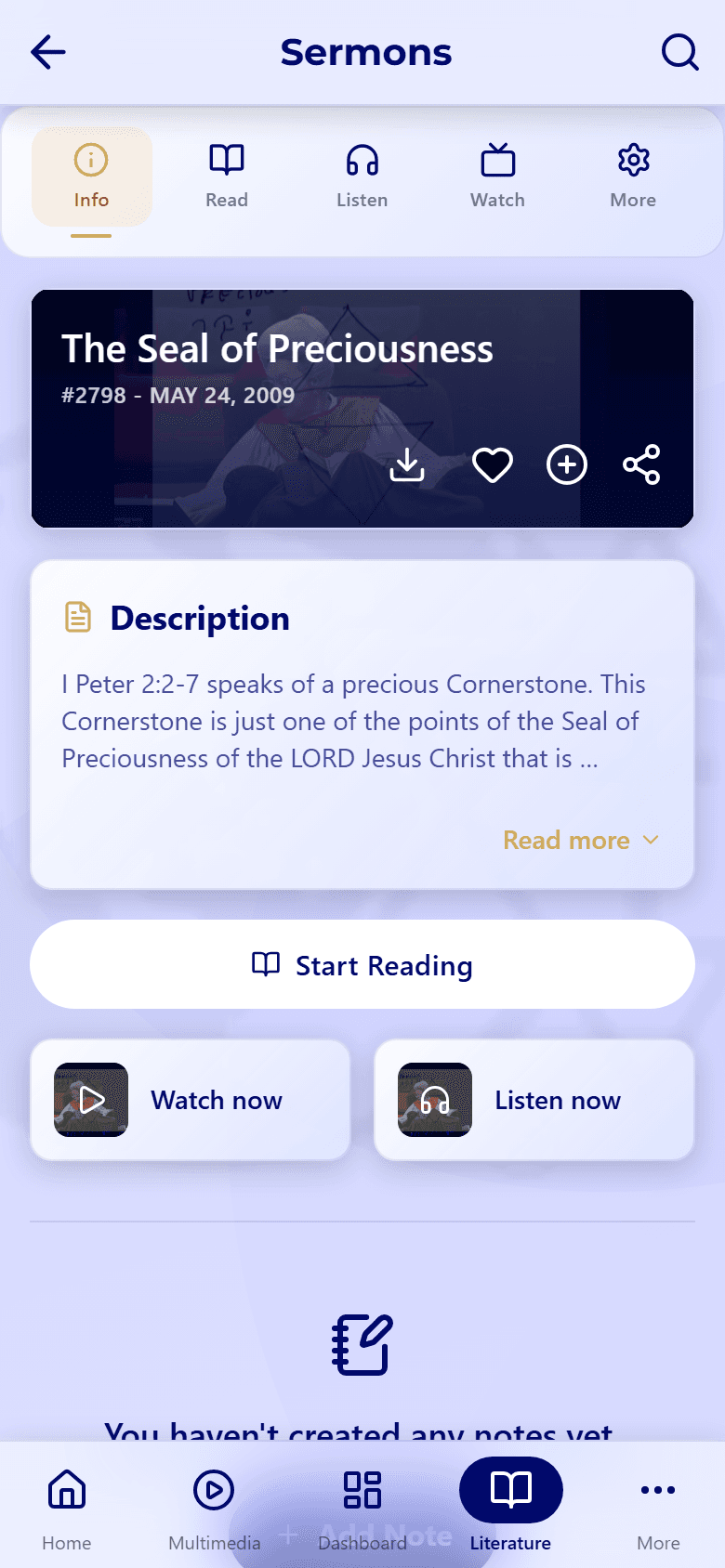
- Open any sermon, book, or track.
- Tap the download icon — on a sermon it sits on the cover, next to the heart.
- Find it later in the Dashboard tab, under Downloads.
- 02
Step 02 / 02
Manage your downloads
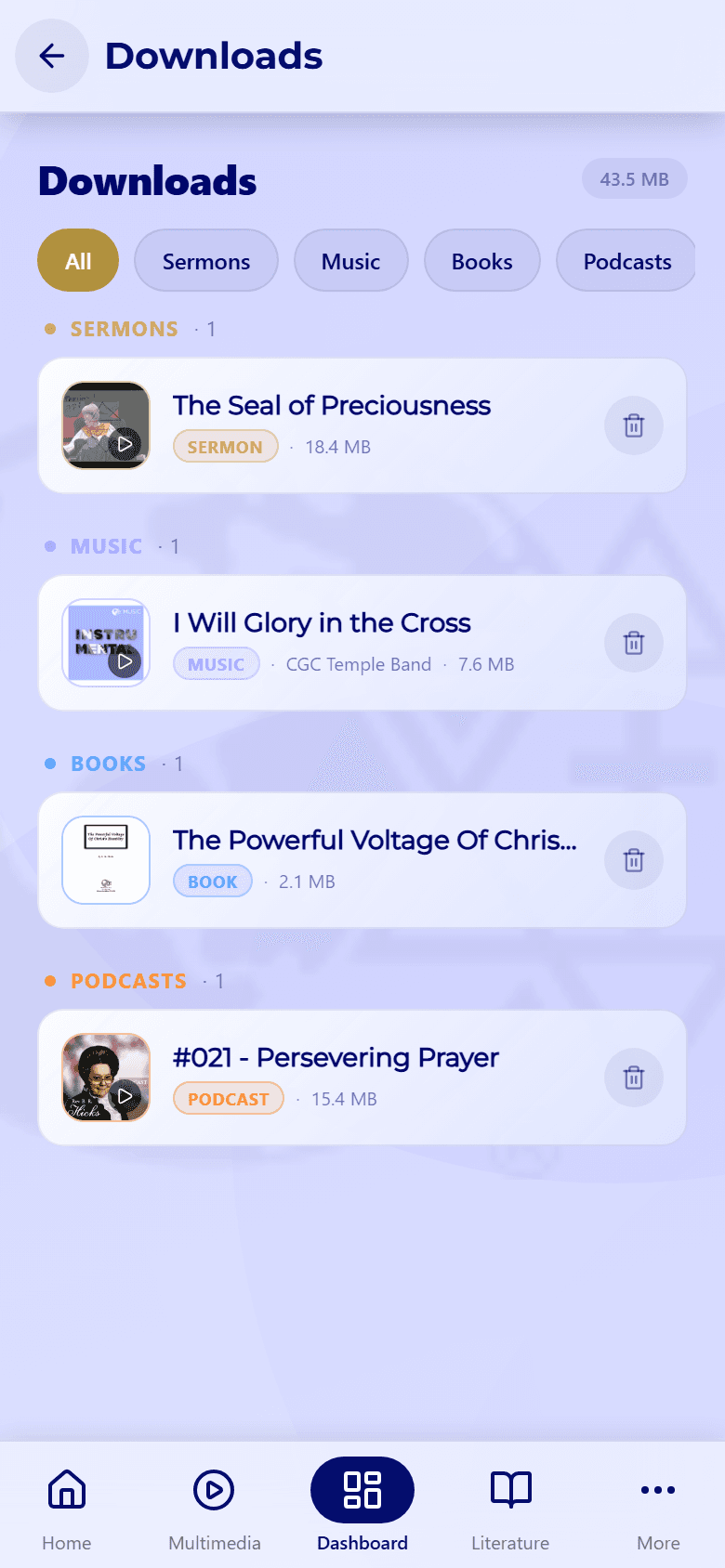
In Downloads, the chips at the top (All, Sermons, Music, Books, Podcasts) filter the list, and the total next to the title shows how much space your downloads use.
- Play or open one: tap it.
- Remove one: press and hold it, or tap its trash icon, then confirm with Remove.
Downloading is included with paid plans; on the free plan, the download button shows a crown or offers to upgrade instead. Live and streaming-only items can't be downloaded. Your downloads stay on your device until you remove them.
Trouble downloading or opening a download? See Playback issues.