Playlists
Create playlists of sermons, music, radio programs, or books.
Updated October 1, 2026
Playlists let you group sermons, songs, radio programs, or books in the order you want to come back to them.
Step-by-step guide
- 01
Step 01 / 03
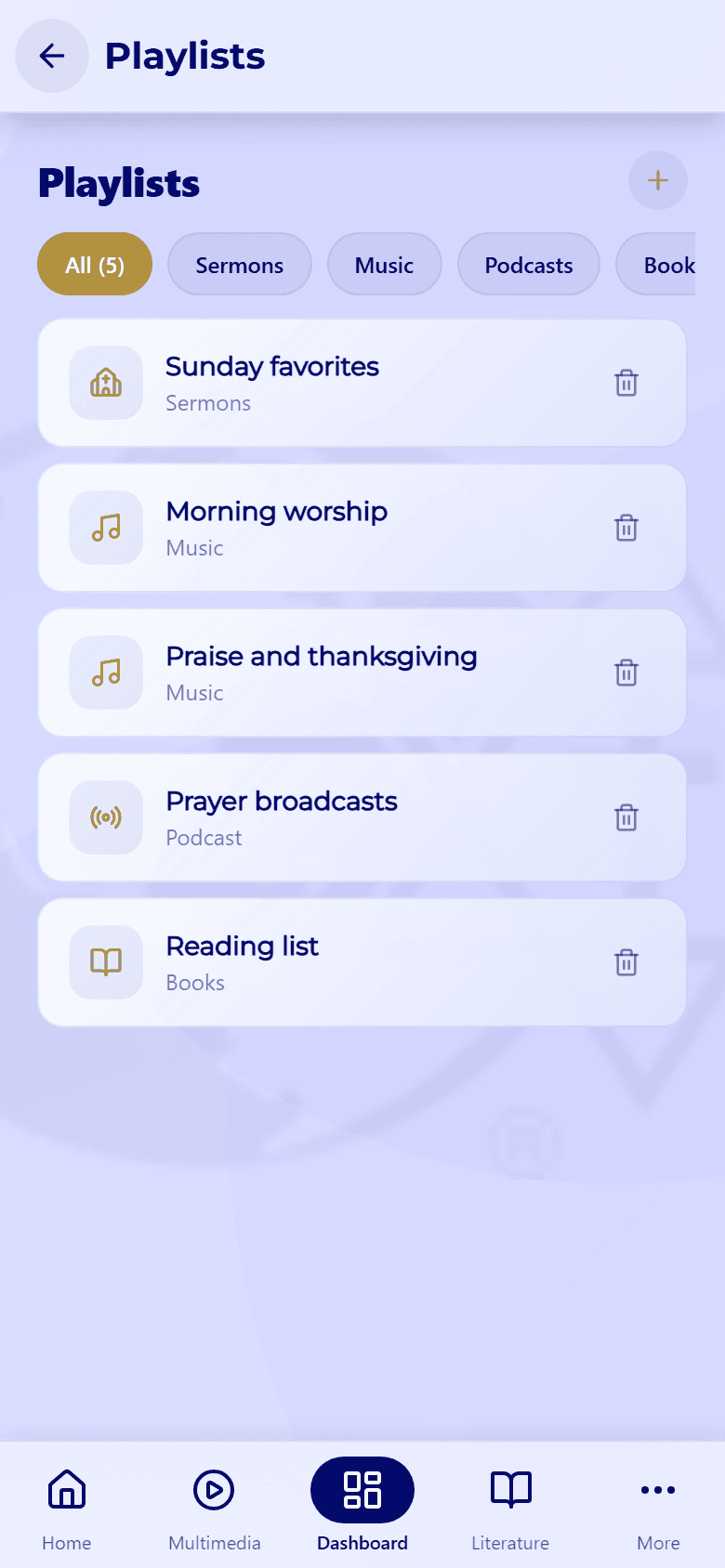
Your playlists
In My Dashboard, tap the arrow next to Playlists. The chips at the top (All, Sermons, Music, Podcasts, and Books) filter the list by type.
- Open one: tap it.
- Delete one: tap its trash icon. It's deleted right away, without asking first.
- 02
Step 02 / 03
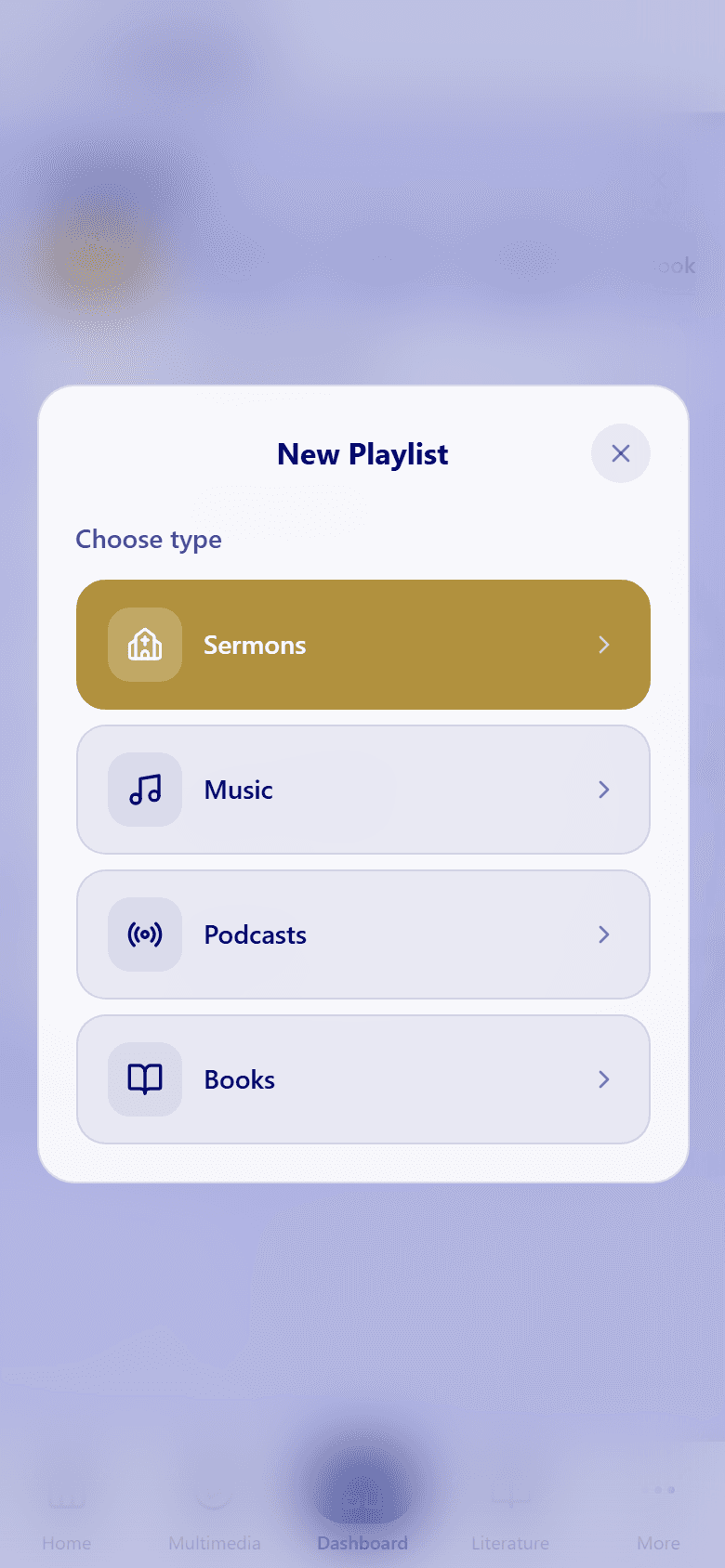
Create a playlist
- Tap + next to Playlists.
- Choose what it holds: Sermons, Music, Podcasts, or Books.
- Give it a name and pick a cover image.
To add something, use the add to playlist button in the player, or on a sermon's or book's page.
- 03
Step 03 / 03
Play and edit a playlist
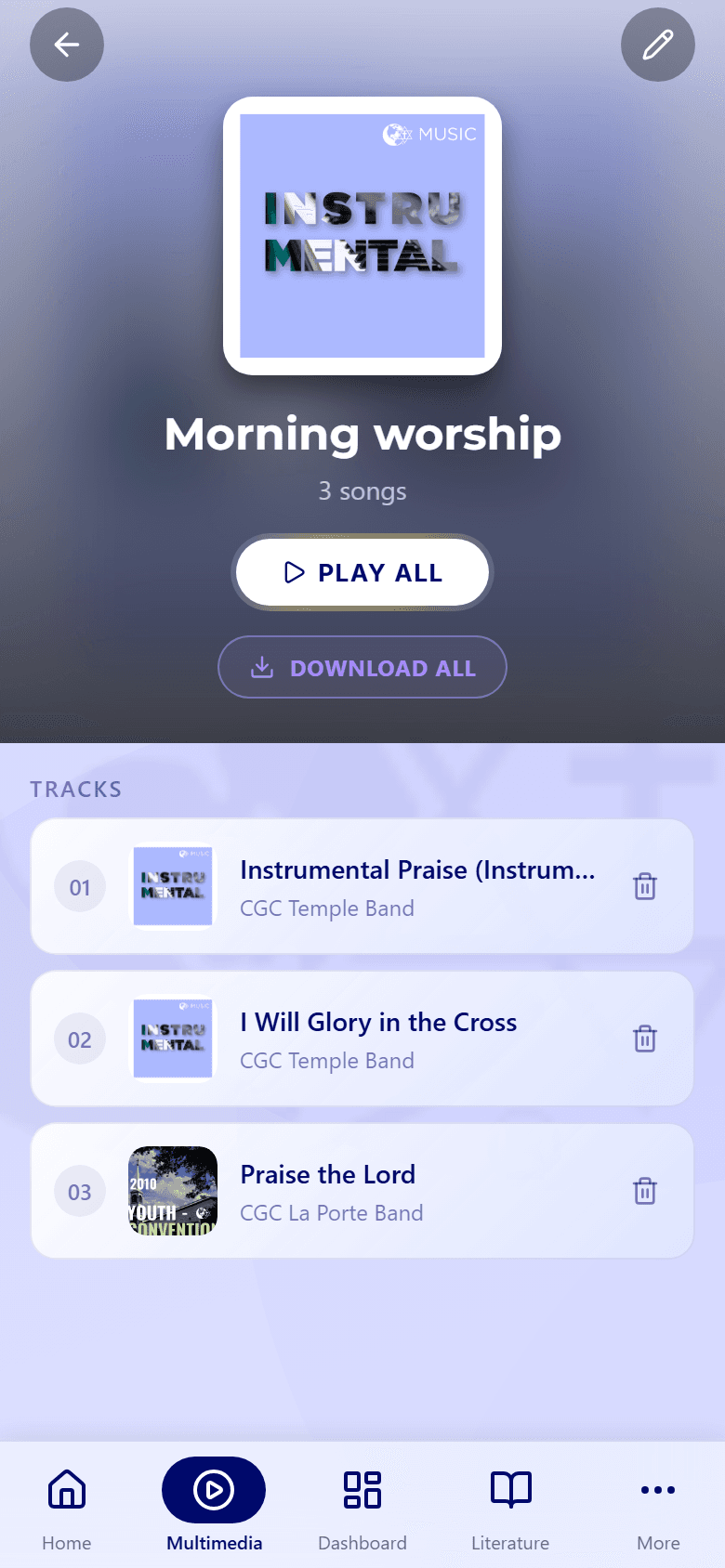
Opening a playlist lists everything in it.
- Play all plays a music playlist from the top, and Download all saves its tracks for offline listening on paid plans.
- Tap the trash icon next to an item to take it out of the playlist.
- Tap the pencil at the top to rename the playlist or change its cover.